Front desk kiosk
Gym front desk check-in software
Turn a tablet into a self-service kiosk: members check in by QR code or PIN, book today’s classes, buy a plan and sign documents, and walk-ins sign up.
On every plan, Free included
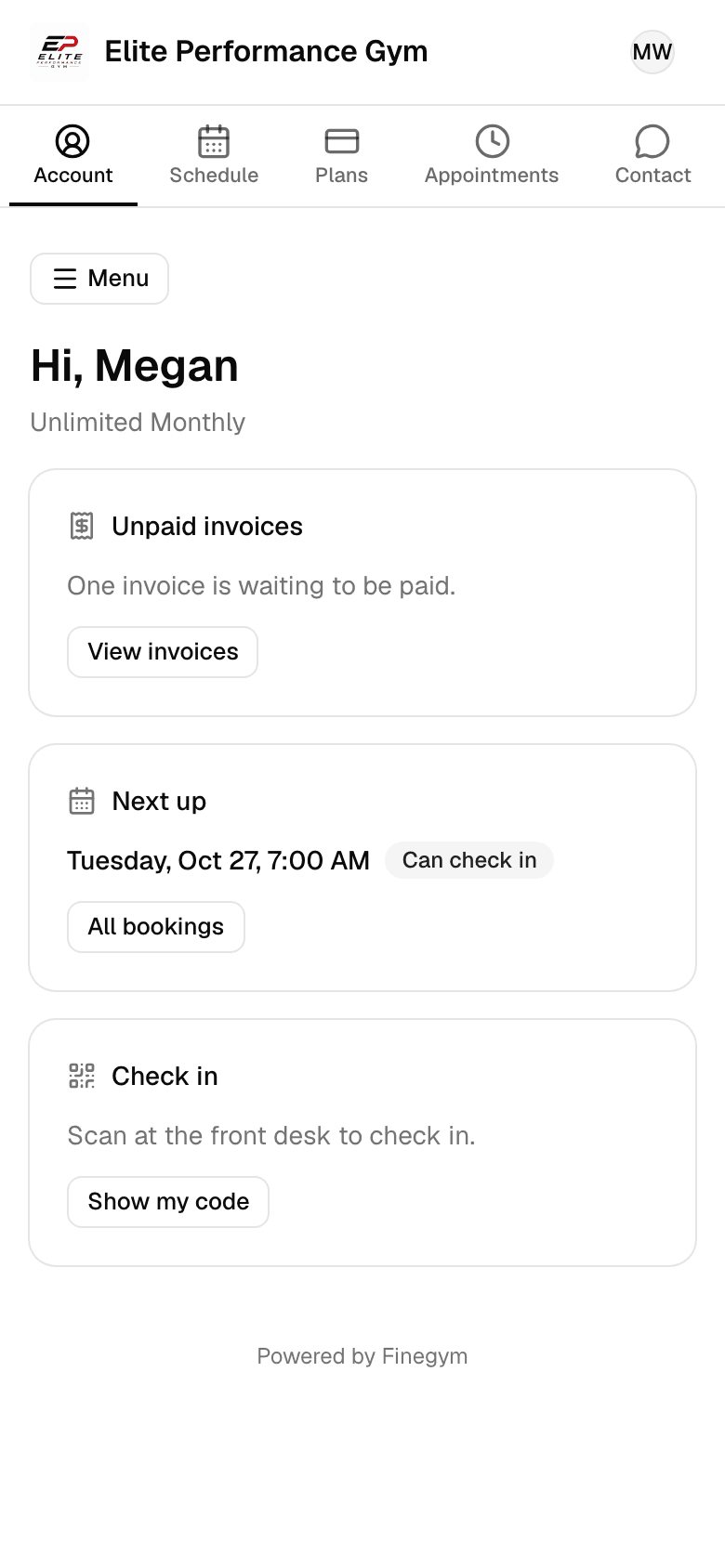
QR code
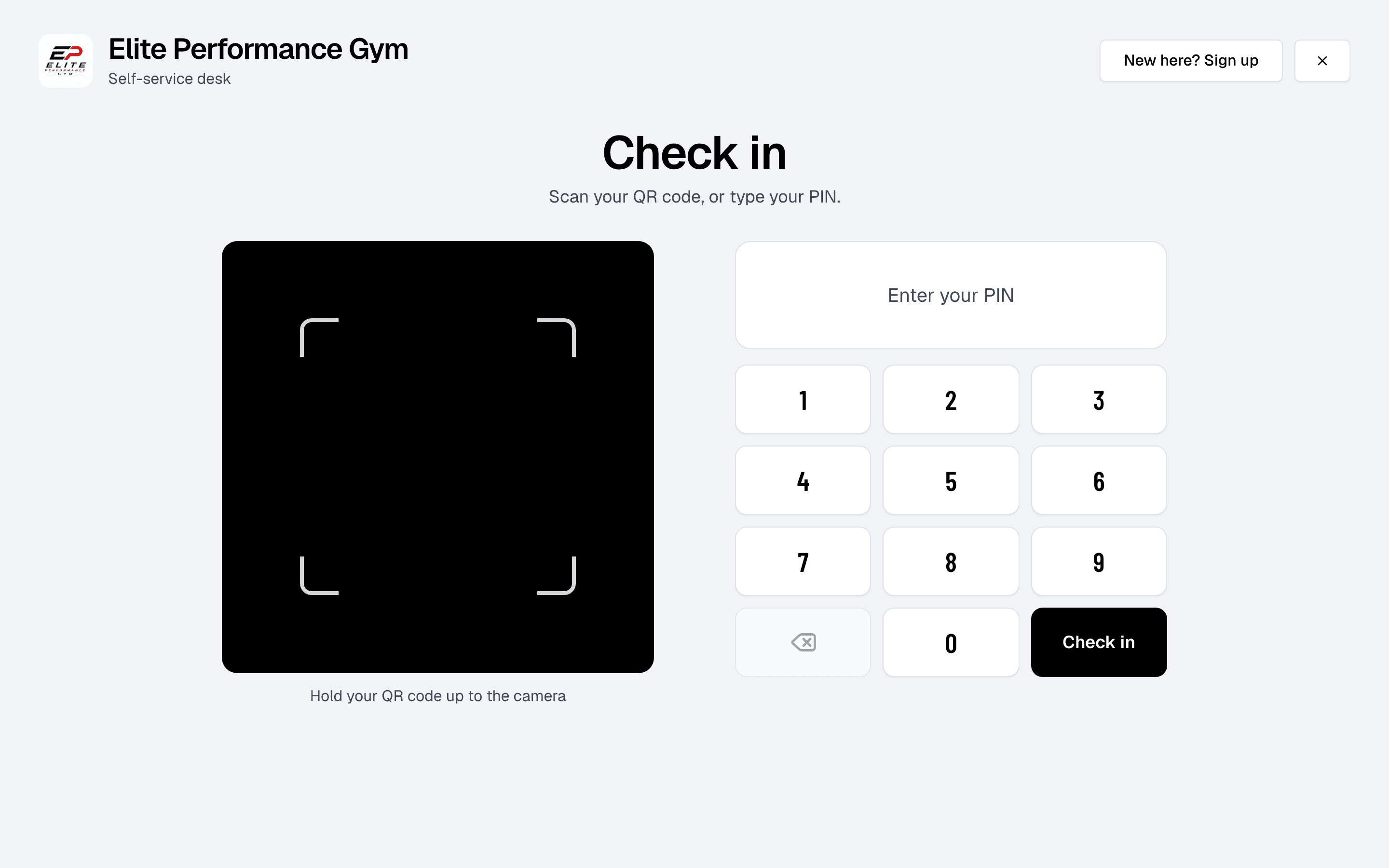
Check in with a QR code
Members can scan their unique QR codes at the front desk for instant check-in. This speeds up the process, reduces manual entry, and ensures a touch-free experience.
- Instant verification
- QR codes immediately verify membership status, eliminating manual lookups.
- From their phone
- Members can use their mobile devices, ensuring contactless and convenient check-ins.
PIN
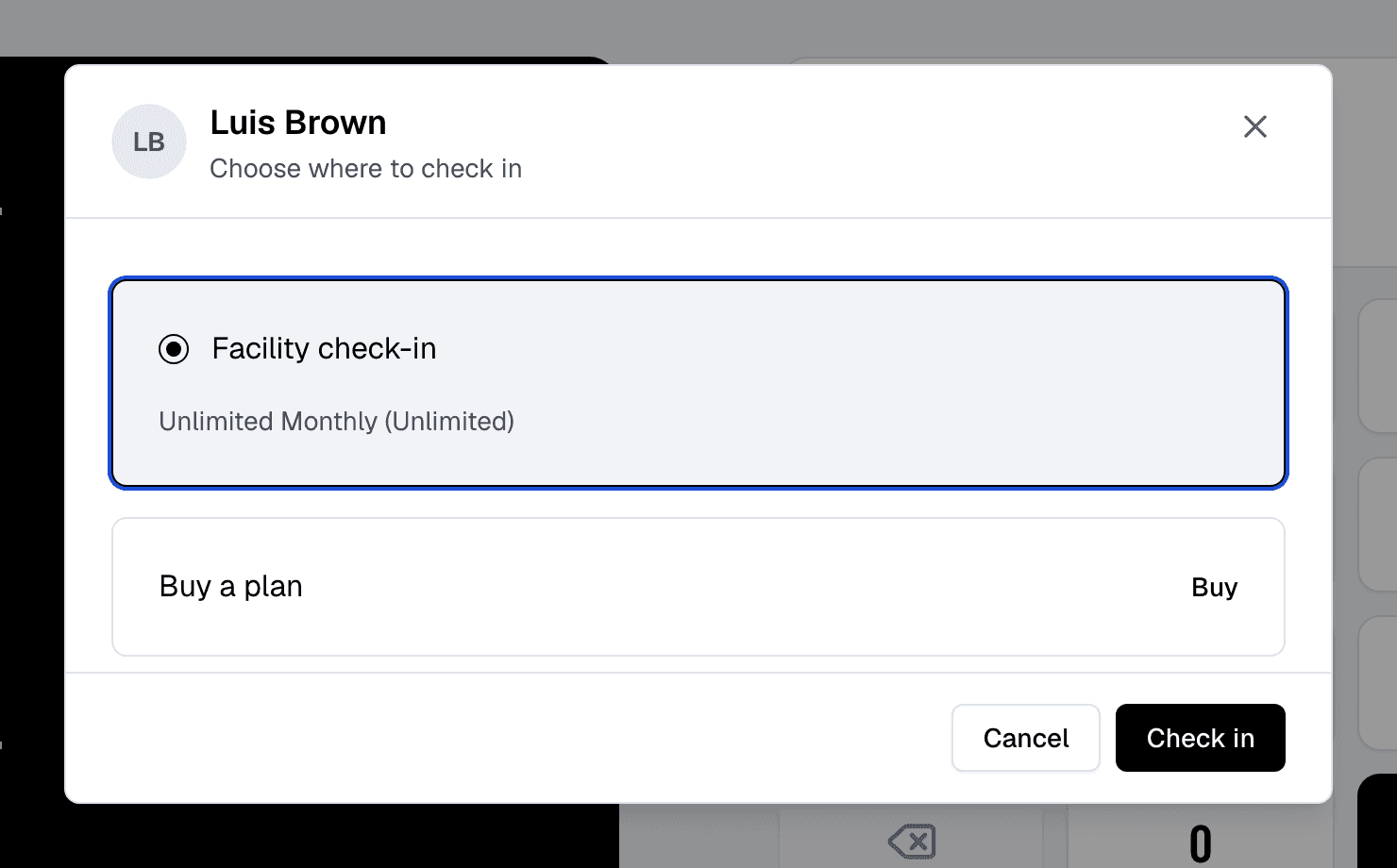
Or type a PIN
Members without a phone at hand type their personal PIN on the kiosk’s keypad instead, and check in the same way.
- A PIN of their own
- Personalized PIN codes ensure members have a secure alternative for check-ins.
- Always at hand
- Each member’s 6-digit PIN is shown with their QR code in the app and on your website, and comes in their welcome email.
- No phone needed
- Perfect for members who prefer not to use mobile devices or QR codes.
Staff
Locked to the kiosk
Turn front desk mode on from any page. Members can use only the kiosk, and leaving it takes the password of the account that turned it on.
- Locked kiosk
- Members use only the kiosk (check in, book, buy a plan, sign documents) while the rest of Finegym stays locked.
- A password to leave
- Leaving front desk mode takes the password of the account that turned it on, so only staff can unlock it.
- Simple for members
- The kiosk shows only your business’s name and logo, a camera for QR codes, a PIN pad and a sign-up button for new visitors, to ensure quick processing.
Sign in on the tablet at your door
With a staff account kept for the kiosk.
Click Front desk mode
At the top of any page, next to Scan member, then Enter front desk mode.
Members use only the kiosk
The rest of Finegym stays locked.
Leave with a password
Tap the X and enter the password of the account that turned it on.
Today page
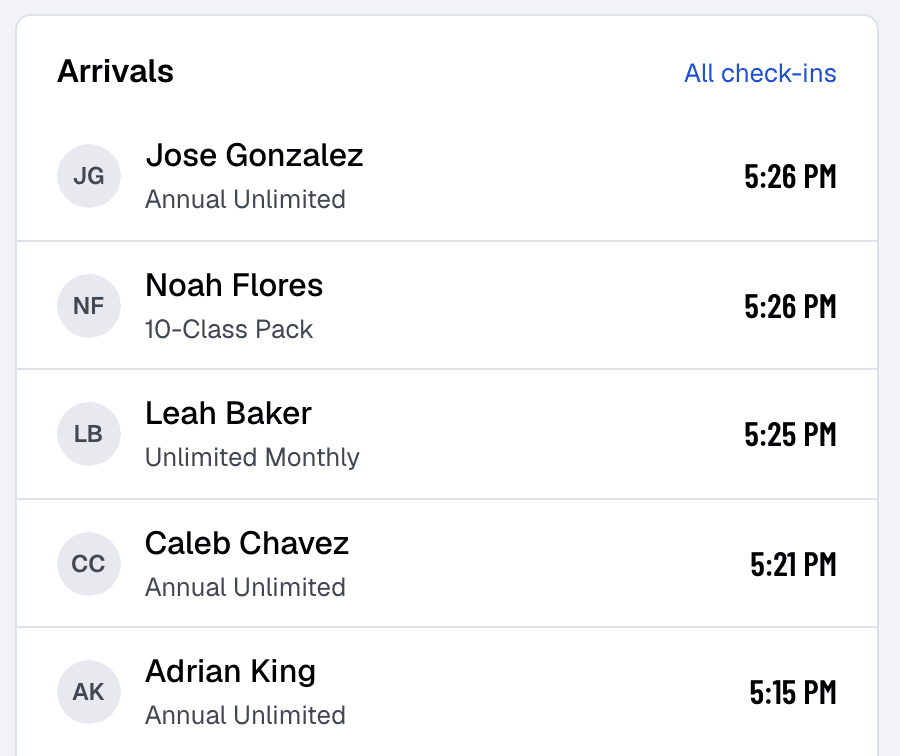
Every check-in, on the Today page
Every check-in at the kiosk is recorded at once, so gym staff see who has come in on the Today page, ensuring a smooth operation throughout the day.
- Live arrivals
- Every kiosk check-in appears at once under Arrivals on the Today page, refreshed every minute.
- Clear messages
- The kiosk shows each result on screen and plays a sound for it, so members notice it while looking away.
New here? Sign up
Walk-ins sign up and pay at the kiosk
A new visitor taps New here? Sign up, goes through four short steps and checks in. Their QR code and PIN are emailed to them, and the plan they bought starts today, once Stripe confirms the card payment.
Your details
Their name, email and date of birth, and any questions you ask new members.
Choose a plan
Any active plan you set to show on your website.
Payment
By card, through your Stripe account.
Sign the documents
Your waiver or agreement, signed with a finger. Then Check in now.
Related features
Step-by-step guides
How it works in detail, in the Finegym help center.
Which plan do I need?
Free covers the day-to-day. Starter adds integrations, Growth adds marketing and your own branded app. Starter and Growth start with a 30-day free trial, no card needed.
Compare plans- Access control and check-insQR code check-ins, access control integration, and real-time attendance tracking for your facility.
- Documents and waiversDigital document management with e-signatures for waivers, contracts, and membership agreements.
- Membership managementCreate and manage recurring, non-recurring, and punchcard memberships with custom pricing, check-in limits, and validity periods.
- Staff roles and permissionsOwner, Manager, Front desk, Coach or Custom: everyone signs in with their own email and sees what their job needs.
Frequently asked questions
More answers, with steps and pictures, are in the help center. Help Center
Front desk mode turns a tablet or computer at your door into a self-service kiosk. Members check in with their QR code or PIN, book today’s classes and appointments, buy a plan and sign documents, and new visitors sign up and pay, while the rest of the system stays locked.
Click the Front desk mode button at the top of any page, next to Scan member, then Enter front desk mode. The screen stays a kiosk until a password is entered. Use a staff account kept for the kiosk: members can do there only what that account’s permissions allow.
To leave front desk mode, staff tap the X and enter the password of the account that turned it on. This ensures that only authorized personnel can unlock the system and access the rest of the application.
Yes. In front desk mode, members check in with their QR code or their personal PIN, with no staff needed.
If a member's membership has expired, the kiosk tells them and doesn't check them in. They can buy a plan right there, or ask your staff.
Yes, front desk mode is secure. It locks the system and restricts access to the kiosk screen only. Exiting the mode requires a password, ensuring that only authorized staff can unlock the application.
The kiosk shows your business’s name and logo, and its layout is the same for every business. You decide what members can do there through the kiosk account’s permissions, and which plans they can buy by setting them to Show on website.
Yes. A new visitor taps “New here? Sign up”, enters their details, chooses a plan, pays by card, signs your documents and checks in. Their QR code and PIN are emailed to them.
Open on Finegym tomorrow.
Sign up in about two minutes, no card needed, and add your plans, schedule and members at your own pace. Moving from other software? We help for free.